التحكم في فيلودا لايف من الهاتف أو أي جهاز
لوحة التحكم الكاملة تعمل في المتصفح. بدون تثبيت، وبدون حد لعدد الأجهزة.
ما هي لوحة الويب؟
فيلودا لايف يعمل على الكمبيوتر. لكن يمكنك التحكم فيه من الهاتف أو التابلت أو أي كمبيوتر آخر. تفتح صفحة في المتصفح، فترى الكاميرات وتبدّل بينها.
ماذا تحتاج؟
- الكمبيوتر يعمل وفيه برنامج فيلودا لايف مفتوح.
- الهاتف على شبكة الواي-فاي نفسها التي عليها الكمبيوتر.
- متصفح عادي (كروم، سفاري، فايرفوكس...). لا تثبّت شيئًا.
- الرقم السري الذي يظهر في البرنامج.
لا يوجد حد لعدد الأجهزة. افتح اللوحة على أكثر من هاتف إن شئت.
كيف أتصل؟ خطوة بخطوة
- شغّل فيلودا لايف على الكمبيوتر.
- تأكد أن الهاتف على الواي-فاي نفسه.
- في البرنامج اضغط زر 📱 (في الشريط الأعلى). تظهر نافذة فيها رمز QR والرقم السري وعنوان اللوحة.
- على الهاتف افتح الكاميرا وامسح الرمز. تفتح لوحة التحكم في المتصفح. الرمز يحمل الرقم السري، فلا تكتبه.
- إن لم يمسح الهاتف الرمز، اكتب العنوان الظاهر تحت الرمز في المتصفح، ثم اكتب الرقم السري إن طُلب.
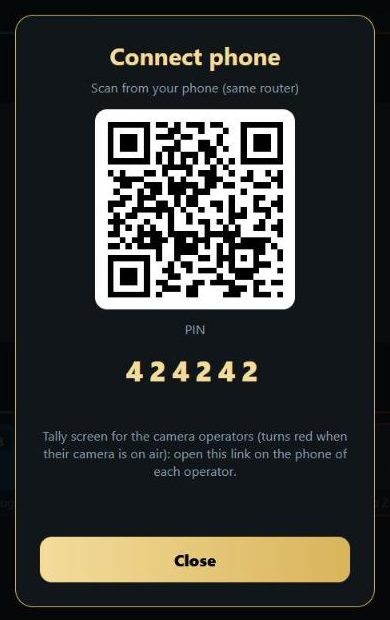
هذا مثال بالرقم التجريبي. رقمك الخاص يظهر في برنامجك. زر 📱 يظهر فقط في نافذة البرنامج على الكمبيوتر نفسه، لا على الهاتف.
جولة في اللوحة (بالصور المتحركة)
الصور مأخوذة من لوحة حقيقية بكاميرات تجريبية، بعرض الكمبيوتر. على الهاتف ترى الأشياء نفسها مرتبة بشكل أضيق. لغة اللوحة تختارها من زر اللغة في الأعلى، وفي الصور هي الإنجليزية.
1الشاشة الرئيسية
في الأعلى شريط الحالة: حالة محرك الفيديو، والمعالج (CPU)، والإطارات (fps). الصورة الخضراء PVW هي المعاينة، أي ما اخترته ليظهر بعد قليل. الصورة الحمراء PGM هي البث، أي ما يراه الناس الآن. تحتهما مربعات المشاهد أو الكاميرات. على اليمين الأزرار الكبيرة.
2التبديل بين الكاميرات: CUT والشريط T-bar
اضغط على مربع كاميرا: تصير المعاينة (إطار أخضر). اضغط CUT: تصير على البث فورًا (إطار أحمر). زر FADE يبدّل بحركة ناعمة.
الشريط T-BAR للتبديل اليدوي: اسحبه ببطء، فيمتزج المشهدان. عند نهاية السحب اضغط Complete ليكتمل التبديل، أو Cancel لتتراجع.
3بدء البث وإيقافه، ومتابعة الصحة
اضغط LIVE STREAM لتبدأ البث. البدء لا يسأل. بعد لحظات يظهر عداد الوقت، وتظهر في الأعلى أرقام الصحة (المعالج، الإطارات، سرعة الرفع). في الصورة بدأ تسجيل احتياطي وحده مع البث.
لإيقاف البث اضغط الزر نفسه. تظهر نافذة «Stop the live stream?». اضغط Yes لتوقف، أو No لتبقى. هذا السؤال يحميك من الضغط الخطأ. إن ظهر شريط أحمر فهو تنبيه، اقرأه.
4الصوت: المستوى والكتم
انزل في العمود الأيمن حتى قسم AUDIO. لكل مصدر صوت (ميكروفون، موسيقى...) مؤشر مستوى يتحرك مع الصوت. اسحب المؤشر الذهبي لترفع الصوت أو تخفضه. اضغط Mute ليسكت المصدر (يصير الزر أحمر)، واضغطه مرة ثانية ليعود.
5التسجيل وحفظ لحظة
زر REC يبدأ التسجيل على الكمبيوتر، ويعرض الوقت وهو يعمل. لحفظ لحظة مهمة (العروس تدخل مثلًا): اكتب اسمًا اختياريًا واضغط SAVE THIS MOMENT. يحفظ البرنامج آخر ثوانٍ لتعيدها لاحقًا. زر REPLAY LAST يعيد آخر لحظة بحركة بطيئة.
لإيقاف التسجيل اضغط الزر. يسألك «Stop recording?» قبل أن يوقف. اضغط Yes لتوقف.
6القفل والرقم السري
زر القفل (🔓) في الأعلى. اضغطه فيصير 🔒 Locked. وهو في القفل لا يمكن إيقاف البث أو التسجيل، ولا حذف مشهد، ولا تغيير الإعدادات بالخطأ. التبديل بين الكاميرات يبقى يعمل.
لفتح القفل اضغط الزر مرة ثانية واكتب الرقم السري، ثم Unlock. والرقم السري يُطلب أيضًا عند أول دخول للوحة إن لم تفتحها بمسح الرمز.
تطبيق أندرويد
تطبيق مستقل لنظام أندرويد. يعمل مثل اللوحة، ويضيف أشياء للهاتف.
- التحكم: مشاهد الكاميرات، وCUT وFADE، وشريط T-bar، وREC والبث (الإيقاف يسأل أولًا)، وأرقام الصحة وتنبيهاتها، ومستوى الصوت والكتم، وزر التالي (NEXT)، وإعادة اللحظة، والعناوين، والقفل.
- شاشة المصوّر (Tally): شاشة كاملة حمراء حين تكون كاميرتك على الهواء، وخضراء حين تكون التالية.
- كاميرا الهاتف كمصدر: يمكن للهاتف أن يرسل صورة كاميراه إلى البرنامج (RTMP أو SRT).
كيف أتصل؟ افتح التطبيق، واكتب عنوان الكمبيوتر (مثل 192.168.1.20) والرقم السري، أو اضغط مسح QR وامسح الرمز الظاهر في البرنامج. يحفظ التطبيق البيانات ويعيد الاتصال وحده إن انقطع. الهاتف والكمبيوتر على الواي-فاي نفسه.
تنبيه صادق: التطبيق جُرّب على محاكي أندرويد مع البرنامج الحقيقي، ولم يُجرَّب بعد على هواتف حقيقية كثيرة. ومسح الرمز يحتاج خدمات Google Play ولم نجرّبه برمز حقيقي. إن لم يمسح الرمز، اكتب العنوان بيدك.
إن لم تفتح اللوحة
- شبكة مختلفة: الهاتف والكمبيوتر يجب أن يكونا على الواي-فاي نفسه. إن كان الهاتف على بيانات الجوال فلن تفتح.
- شبكة الضيوف (Guest): بعض الراوترات تعزل الأجهزة عن بعضها في شبكة الضيوف. صِل الاثنين بالشبكة الرئيسية.
- جدار الحماية: عند أول تشغيل يسأل ويندوز: هل تسمح لفيلودا لايف بالشبكة؟ اختر السماح. إن ضغطت «إلغاء» بالخطأ، افتح إعدادات جدار الحماية واسمح للبرنامج.
- عنوان خاطئ: استعمل العنوان الظاهر في نافذة 📱. قد يتغير عنوان الكمبيوتر بعد إعادة تشغيل الراوتر.
- الرقم السري: إن نسيته فهو ظاهر دائمًا في نافذة 📱 على الكمبيوتر. بعد عدة محاولات خاطئة تُقفل المحاولات دقيقة واحدة. انتظر ثم أعد.
الأمان
- الاتصال داخل شبكتك المحلية فقط. لا يخرج الفيديو ولا اللوحة إلى الإنترنت.
- من لا يعرف الرقم السري لا يدخل. لا تنشر صورة الرمز.
- استعمل القفل 🔒 أثناء الحفل حتى لا يوقف أحد البث بالخطأ.
- يمكنك تغيير الرقم السري من إعدادات اللوحة.
المساعدة
للمساعدة راسلنا من موقع velodaapp.com.
Control Veloda Live from your phone or any device
The full control panel runs in a browser. Nothing to install, no limit on devices.
What is the web panel?
Veloda Live runs on your PC. You can control it from a phone, a tablet or another computer. You open a page in the browser, see the cameras and switch between them.
What you need:
- The PC is on and Veloda Live is open.
- The phone is on the same Wi-Fi as the PC.
- An ordinary browser (Chrome, Safari, Firefox...). Install nothing.
- The PIN shown in the program.
There is no limit on devices. Open the panel on as many phones as you like.
How to connect, step by step
- Start Veloda Live on the PC.
- Make sure the phone is on the same Wi-Fi.
- In the program press the 📱 button (in the top bar). A window shows a QR code, the PIN and the panel address.
- On the phone open the camera and scan the code. The control panel opens in the browser. The code carries the PIN, so you do not type it.
- If the phone cannot scan it, type the address shown under the code into the browser, then type the PIN if asked.
This is an example with a demo PIN. Your own PIN is shown in your program. The 📱 button appears only in the program window on the PC itself, not on the phone.
A tour of the panel (animated)
The animations were recorded from a real panel with demo cameras, at desktop width. On a phone you see the same things in a narrower layout. You pick the panel language with the language button at the top; here it is English.
1The main screen
At the top is the status bar: the video engine's status, CPU and frames per second. The green PVW picture is the preview: what you picked to go next. The red PGM picture is the program: what people see now. Below them are the scene or camera tiles. The big buttons are on the right.
2Switching cameras: CUT and the T-bar
Tap a camera tile: it becomes the preview (green frame). Press CUT: it goes to the program at once (red frame). FADE switches with a smooth fade.
The T-BAR is a manual mix: drag it slowly and the two scenes blend. At the end press Complete to finish the switch, or Cancel to go back.
3Going live, stopping, and watching health
Press LIVE STREAM to start. Starting does not ask. A moment later a timer shows and the health numbers (CPU, frames, upload speed) appear on top. In the animation a backup recording also started by itself with the stream.
To stop, press the same button. A box asks "Stop the live stream?". Press Yes to stop or No to stay live. This question protects you from a wrong tap. If a red bar appears, it is an alert: read it.
4Audio: level and mute
Scroll the right column down to AUDIO. Each sound source (microphone, music...) has a level meter that moves with the sound. Drag the gold handle to raise or lower the volume. Press Mute to silence a source (the button turns red) and press it again to bring it back.
5Recording and saving a moment
The REC button starts recording on the PC and shows the time while it runs. To keep an important moment (the bride walks in, for example), type an optional name and press SAVE THIS MOMENT. The program keeps the last seconds so you can replay them later. REPLAY LAST replays the last moment in slow motion.
To stop recording, press the button. It asks "Stop recording?" first. Press Yes to stop.
6Lock mode and the PIN
The lock button (🔓) is at the top. Press it and it becomes 🔒 Locked. While locked, nobody can stop the stream or the recording, delete a scene or change settings by mistake. Switching cameras still works.
To unlock, press the button again, type the PIN, then Unlock. The same PIN is also asked the first time you open the panel if you did not scan the code.
The Android app
A standalone Android app. It works like the panel and adds things for the phone.
- Control: scene tiles, CUT and FADE, the T-bar, REC and the stream (stopping asks first), health numbers and alerts, audio level and mute, NEXT for the show steps, replay and saved moments, titles, and the lock.
- Camera operator screen (Tally): a full-screen red when your camera is on air and green when it is next.
- Phone camera as a source: the phone can send its camera picture to the program (RTMP or SRT).
How to connect: open the app and type the PC address (like 192.168.1.20) and the PIN, or press Scan QR and scan the code shown in the program. The app remembers them and reconnects by itself if the link drops. The phone and the PC must be on the same Wi-Fi.
Download the app and the program
Honest note: the app was tested on an Android emulator with the real program, not yet on many real phones. QR scanning needs Google Play services and has not been tried with a real code. If the scan fails, type the address by hand.
If the panel does not open
- Different network: the phone and the PC must be on the same Wi-Fi. On mobile data it will not open.
- Guest network: some routers keep devices apart on the guest network. Put both on the main network.
- Firewall: on first start Windows asks whether to allow Veloda Live on the network. Choose Allow. If you pressed Cancel by mistake, open the firewall settings and allow the program.
- Wrong address: use the address shown in the 📱 window. The PC address can change after the router restarts.
- PIN: if you forgot it, it is always shown in the 📱 window on the PC. After several wrong tries the attempts are locked for one minute; wait, then try again.
Safety
- The connection stays inside your local network only. Neither the video nor the panel goes to the internet.
- Without the PIN nobody gets in. Do not post a photo of the code.
- Use the lock 🔒 during the event so nobody stops the stream by mistake.
- You can change the PIN in the panel settings.
Help
For help, write to us from velodaapp.com.